Efficient Route Planning with Google Maps Route Planner Multiple Stops
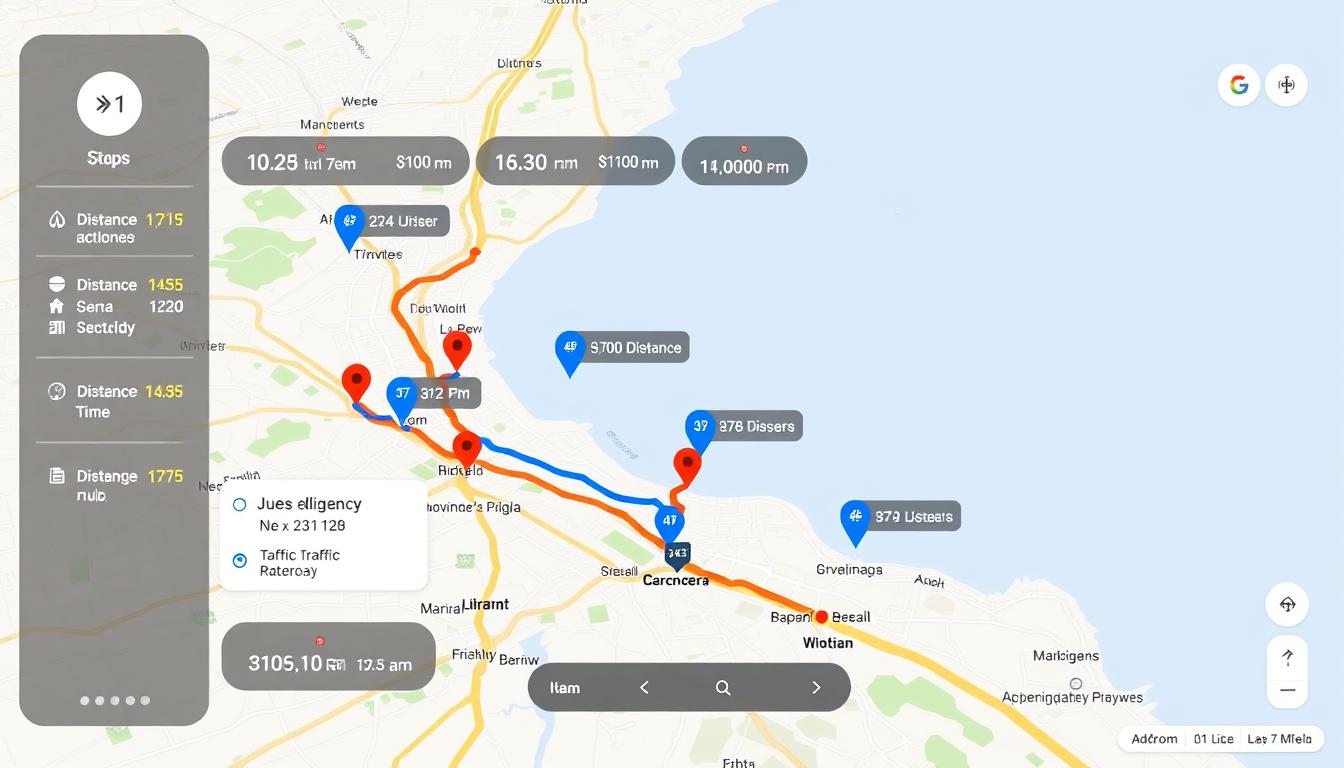
This guide presents a practical how-to for building an efficient multi-destination itinerary tailored to professionals managing errands, sales calls, or light delivery runs in the United States. The platform provides turn-by-turn directions across driving, walking, cycling, ride-share, and motorcycle modes, with clear visual cues: the primary route appears in blue and alternatives in gray to compare travel time quickly.
Critical constraints are upfront: public transit and flight searches do not support additional destinations, and the web interface limits a route to ten points total. On desktop users can click and drag to adjust a driving path, and the app allows adding, reordering, or removing stops during navigation. Business readers will find this workflow cost-effective for short, repeatable runs; the article later covers optimization tools for advanced scheduling and compliance with road signage and local traffic laws.
Key Takeaways
- One practical how-to for creating a multi-destination itinerary using the route planner.
- The service offers free turn-by-turn directions for major transport modes except transit and flights.
- Desktop drag editing and in-app reordering speed up on-the-fly planning.
- Limit of ten total points and manual sequencing; automatic optimization requires third-party tools.
- Follow posted signage and local laws; digital guidance does not replace real-world rules.
What “Multiple Stops” Means in Google Maps Today
This section defines a single routed trip that links several intermediate addresses before the final destination. The feature lets users sequence up to nine intermediate points plus the final point, capping the itinerary at ten total waypoints.
Mode coverage in the United States
- Available for driving, walking, cycling, ride-share, and motorcycle.
- Not available for public transit or flight searches due to data and functional limits.
Why transit and flights differ
Transit requires agency schedules and local feeds, so multi-destination transit routing is restricted for reliability. Flight search is an aggregator of fares and options, not a turn-by-turn navigator, so it does not accept chained waypoints.
“Digital directions are a tool; drivers must follow posted signage and local traffic laws.”
| Mode | Multi-destination | Notes |
|---|---|---|
| Driving | Yes | Primary route shown in blue; alternatives in gray |
| Public Transit | No | Depends on agency data and schedules |
| Flights | No | Search aggregator; not a navigator |
Operational note: For complex itineraries, split trips or use external tools. When using small motorcycles under 125cc, enable “Avoid tolls and highways” for safer routing.
Next: step-by-step instructions for adding and reordering legs when using google maps to plan a trip.
Step-by-Step: Plan a Multi-Stop Route in the Google Maps app
Procedure overview: Follow concise steps to create an itinerary from a clear starting point, add addresses, and begin turn-by-turn directions on mobile or desktop. The workflow supports up to ten total waypoints and allows live edits during navigation.
Open the app and set the starting point
Launch the app on iOS, Android, or a web browser. The mobile app defaults to current location as the starting point; on desktop, enter an explicit address to set a precise starting point.
Add addresses and expand the itinerary
Tap or click Directions, then enter the first destination. Select Add destination to include further addresses until the list reaches the ten-point cap. Paste full street addresses or pick verified place names to reduce geocoding errors.
Reorder, choose driving, and start navigation
Drag items to change the order and shape the most efficient path. Select the car icon for driving directions, compare ETAs across displayed alternatives, then tap Start to begin navigation. Search along the way to insert fuel or supply stops without rebuilding the entire plan.
| Action | Mobile | Desktop |
|---|---|---|
| Set starting point | Defaults to current location | Enter address manually |
| Add addresses | Tap Add destination | Click Add destination |
| Change order | Drag list items | Drag list items or the route line |
Customize and Refine Your Route for Driving
Refine driving plans by toggling avoidance settings and checking scheduled ETAs before departure. Small changes to options can change travel time and operational cost. The goal is to balance speed, safety, and expense for repeatable workflows.
Avoid tolls and highways when needed
Use the Options menu to exclude toll roads or highways. This reduces direct fees and can match vehicle restrictions, but it often increases trip duration.
For motorcycles or small-engine vehicles under 125cc, enable “Avoid highways” to comply with access rules.
Schedule departure or arrival times
On desktop, change Leave now to Depart at or Arrive by to see traffic-informed ETAs. Note that this scheduling applies only to single-destination planning.
For multi-leg itineraries, evaluate ETAs per segment or split the trip into single-destination legs for accurate time estimates.
Preview critical turns with Street View
Open route details, expand the step list, and click preview photos where available. Street View helps verify loading docks, complex intersections, and approach lanes.
| Action | Effect | Operational note |
|---|---|---|
| Avoid tolls/highways | Lower direct costs | May add minutes; assess labor impact |
| Set Depart at / Arrive by | Traffic-informed ETAs | Desktop only; single-destination limitation |
| Street View preview | Reduces missed turns | Use for complex access points and deliveries |
| Drag route segments (desktop) | Custom corridors | Re-check ETAs for downstream stops |
Compare alternatives on the map to pick the best route for current traffic. Save frequent itineraries as bookmarks to speed planning and keep schedules consistent across drivers.
google maps route planner multiple stops
Users can assemble one continuous trip made up of several intermediate locations and a final stop. This capability lets a single itinerary link up to nine intermediate addresses plus the final destination, capping the total at ten points.
Usability: The app and desktop interfaces support multi-stop entry. Desktop adds drag-to-adjust tools for shaping corridors and drag-and-drop reordering of waypoints.
- Visualization: The primary route displays in blue; alternate routes appear in gray with comparative travel times.
- Sequencing: Manual reordering controls the itinerary. The system does not auto-optimize stop order.
- Use cases: Personal errands, account visits, and light local deliveries fit within these constraints.
“Validate place names and addresses to reduce navigation errors and avoid missed appointments.”
| Aspect | Capability | Operational note |
|---|---|---|
| Total points | Up to 10 | Includes start, intermediates, final |
| Interface | App and desktop | Desktop supports drag-to-shape |
| Visualization | Primary (blue) / alternates (gray) | ETAs shown for each option |
| Sequencing | Manual | Consider third-party software for optimization |
Recommendation: Use avoidance settings (Avoid tolls / Avoid highways) when cost or vehicle rules require it. Verify appointment windows before departure to meet service expectations.
When Google Maps Isn’t Enough for Businesses
As stop counts and regulatory constraints rise, consumer navigation falls short of professional routing needs.
Manual sequencing is time-consuming and error-prone for business teams. Assigning orders by hand increases planning time and invites human mistakes as stops grow beyond a handful.
Key operational constraints include lack of automated optimization and no modeling for vehicle weight limits, axle restrictions, or commercial access rules. These factors matter for truck deliveries and regulated freight.
Practical impacts on service and teams
When routes approach the ten-point cap, planners split itineraries. Splitting raises coordination work across drivers and increases labor hours.
- Unmanaged dwell time and poor sequencing can reduce customer satisfaction and raise costs.
- Compliance gaps—bridge clearances, hazardous materials, dock hours—are not enforced natively.
- Address imports, bulk edits, and proof-of-delivery workflows are limited in a consumer app.
| Issue | Business impact |
|---|---|
| Manual sequencing | Higher planning time, errors |
| Commercial constraints | Compliance and safety risks |
| Stop cap | Split routes; coordination overhead |
Tactical guidance: Keep small-scale, single-driver trips inside the stop cap and validate plans against vehicle limits and appointment windows before dispatch.
“For fleets and field service teams, dedicated routing software removes manual burden and enforces commercial constraints.”
Route Planning Software Alternatives for Multi-Stop Optimization
Specialized software replaces manual sequencing with automated itinerary building for field teams.
What dedicated platforms add beyond consumer navigation: automated sequencing, constraint handling, and fleet workflows. These systems evaluate objectives such as time, distance, or cost and produce optimized plans for many daily stops.
Constraint management includes vehicle capacity, delivery time windows, driver shifts, priority customers, and commercial restrictions. The optimizer enforces these rules while minimizing operational expense.
Fleet support and efficiency: dispatchers can assign routes to multiple drivers, monitor progress in real time, and handle exceptions. Automation reduces planning from hours to seconds and raises completed stops per shift.
- Import large address lists, validate geocodes, and batch-edit stops.
- Integrate with order management, telematics, and CRM for synchronized updates.
- Use performance data for continuous optimization and KPI tracking.
“Dedicated platforms like Route4Me automate sequencing and cost/time optimization for large fleets, compressing planning time and improving on-time performance.”
Pro Tips to Save Time and Get the Best Route
A few tactical steps can reduce drive time and improve on-time performance for field teams. These methods focus on using in-app search, comparing available alternatives, and adjusting the path on desktop to match operational constraints.
Search for places along your route to add smart stops
Use “Search along the way” to add fuel, meals, or supply pickups without rebuilding your plan. This preserves sequence integrity and keeps ETAs stable.
Confirm the starting point before dispatch, especially when scheduling from a depot or assigning to another driver. Small naming conventions help drivers recognize priorities at a glance.
Select alternate routes and drag to adjust on desktop
When multiple options appear, the primary path displays in blue and alternatives in gray with ETAs shown. Compare those ETAs to select the best route that meets schedule and cost objectives.
On desktop, click and drag the route line to favor safer access roads or to avoid complex intersections. After adjustments, re-validate timing to confirm operational impact.
- Add multiple relevant POIs (restrooms, parking, loading zones) during planning to reduce unplanned detours.
- Reorder stops to cluster nearby locations and reduce backtracking, then confirm updated ETAs.
- Plan route variants for different times of day and select the most appropriate option at dispatch.
- Use the app for real-time adjustments when customer requests or conditions change.
“Compare alternatives visually and by ETA; small edits on desktop often prevent large delays in execution.”
| Action | Benefit | Operational check |
|---|---|---|
| Search along the way | Preserves sequence; adds smart stops | Confirm POI accuracy and ETA impact |
| Compare alternatives | Choose fastest or lowest-cost option | Evaluate ETA and traffic at dispatch |
| Drag route line (desktop) | Prefer safer access roads | Re-validate downstream timings |
| Reorder stops | Cluster visits; reduce miles | Review cumulative ETA change |
Conclusion
Conclusion
The consumer app supports building a multi-destination itinerary of up to ten total points and is effective for personal use and small business runs. Confirm the starting point and validate all addresses before dispatch.
Review alternative routes and ETAs, enable avoid-tolls or avoid-highways when needed, and use Street View or desktop drag adjustments to clear complex approaches. Validate directions and timing for each leg; posted signs and local laws govern final decisions.
For higher stop counts or constrained operations, adopt dedicated route optimization software to automate sequencing and enforce commercial rules. Doing so reduces planning time, lowers fuel and labor expense, and improves customer punctuality.
Action: Apply the steps and pro tips in this guide today, then pilot optimization tools if workflows scale beyond simple itineraries.
FAQ
What does “multiple stops” mean in Google Maps today?
The term refers to planning a single driving itinerary that includes several sequential destinations. In the app, users can add and reorder up to 10 addresses per trip in the United States for car navigation. Public transit and air travel options do not support chained destinations in the same way, so separate searches are required for those modes.
How do stop limits and mode restrictions affect planning?
Stop limits cap the number of waypoints to keep consumer navigation simple and performant. Driving supports the highest number of linked locations; walking and biking options may allow fewer stops. Transit and flights do not offer multi-destination chaining because schedules and transfers require distinct routing logic.
How can a user add and reorder stops in the mobile app?
Open the mapping app on iOS or Android, enter a start point and the first destination, then use the “add stop” control to include additional addresses. Drag-and-drop or the reorder control lets the user change sequence before starting navigation. Each change updates travel time and distance estimates.
Can the app optimize the order of stops automatically?
No. The consumer navigation product does not perform full route optimization for multiple stops. Users must manually reorder waypoints. Businesses requiring automated sequencing should evaluate specialized routing software that supports optimization algorithms and constraints.
What customization options are available for driving directions?
Drivers can choose to avoid tolls or highways, set departure or arrival times to view traffic forecasts, and preview critical turns using Street View. These options refine estimated travel times and help plan around congestion or road rules.
Why are public transit and flights excluded from multi-stop itineraries?
Transit and airline routing depend on timetables, transfer windows, and fare structures that conflict with a single continuous itinerary model. Each leg typically requires independent schedule lookups and may involve separate ticketing, so the consumer app treats them as distinct trips.
When is the consumer app insufficient for business routing needs?
For delivery fleets, field-service teams, and operations with routing constraints (vehicle capacity, time windows, driver assignments), manual sequencing and the stop cap create inefficiencies and increased operating cost. Commercial users benefit from enterprise routing platforms that provide automated sequencing, driver management, and cost optimization.
What capabilities do dedicated route planning solutions add?
Route optimization platforms add algorithmic sequencing, support for many more stops, constraints (time windows, vehicle types), multiple drivers, and fleet telematics integration. They deliver measurable reductions in mileage and labor hours compared with manual multi-destination planning.
Any practical tips to save time when planning a multi-stop trip?
Search for intermediate places along your projected corridor to add efficient waypoints. On desktop, preview alternate routes and drag to adjust alignments. Set departure times to check traffic impacts. For recurring commercial routes, migrate to purpose-built routing software to automate sequencing and reduce planning time.